Introduction
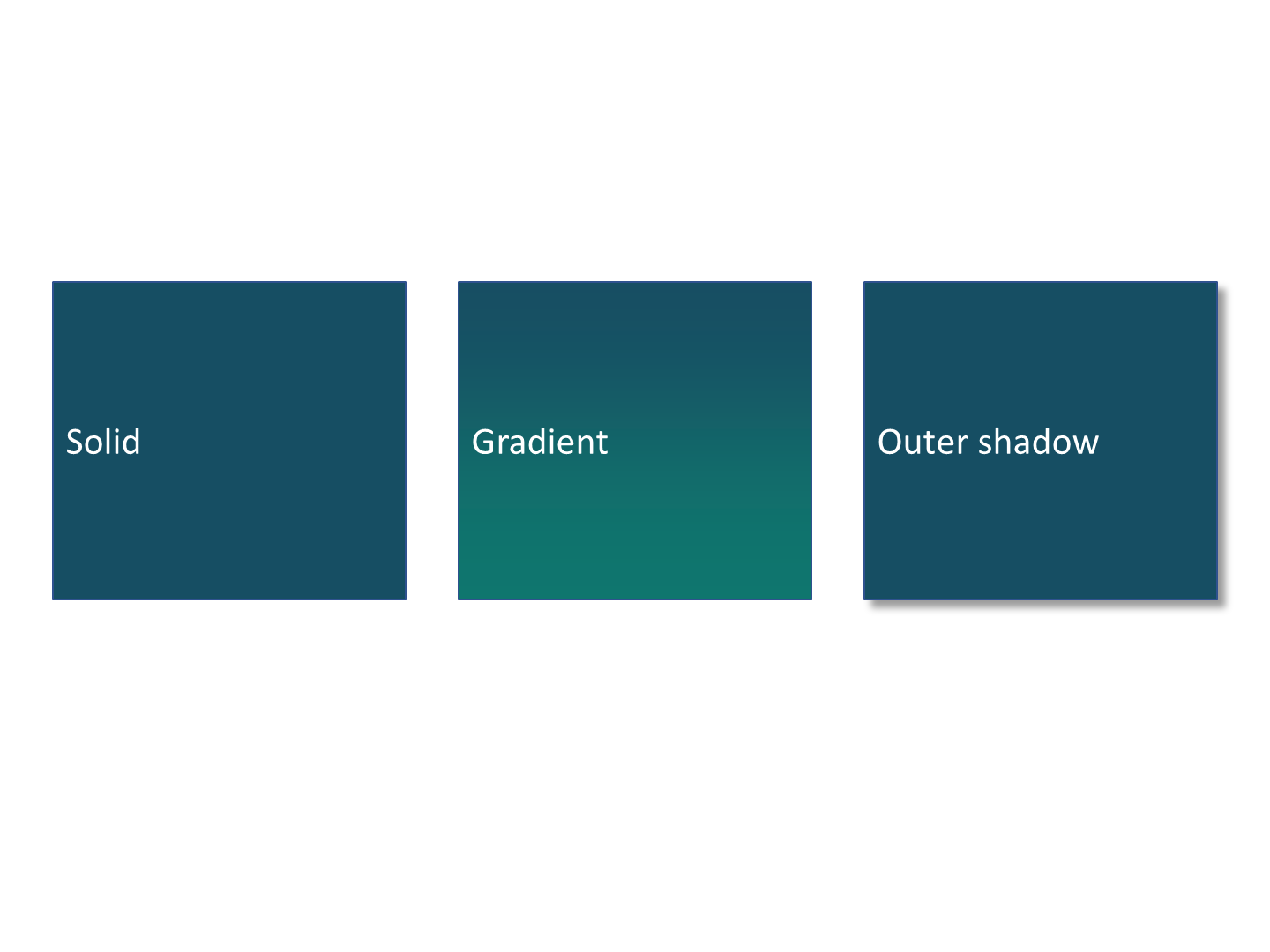
Compare a solid fill, a two-color gradient and an outer shadow in one presentation using Aspose.Slides FOSS for .NET. The three shapes share the same size and base color, making the effect of each setting visible.
Download the complete example · Open the comparison deck
Quick Start
Tested 8 November 2026: Windows x64, .NET SDK 9.0.300, a net8.0 console project, and Aspose.Slides.FOSS 26.9.0.
Extract the example into an empty directory. Install a .NET SDK that can target .NET 8. The included project pins Aspose.Slides.FOSS 26.9.0 and restores it from NuGet:
dotnet run --project Example.csproj
Build the comparison
Save this complete program as Program.cs. The project download includes Example.csproj with the package reference and net8.0 target.
using System;
using Aspose.Slides.Foss;
using Aspose.Slides.Foss.Drawing;
using Aspose.Slides.Foss.Export;

using var presentation = new Presentation();
var labels = new[] { "Solid", "Gradient", "Outer shadow" };
for (int index = 0; index < labels.Length; index++)
{
    var label = labels[index];
    var shape = presentation.Slides[0].Shapes.AddAutoShape(ShapeType.Rectangle, 30 + index * 230, 160, 200, 180);
    shape.Name = label;
    shape.TextFrame.Text = label;
    shape.TextFrame.Paragraphs[0].Portions[0].PortionFormat.FontHeight = 22;
    shape.FillFormat.FillType = FillType.Solid;
    shape.FillFormat.SolidFillColor.Color = Color.FromArgb(255, 22, 78, 99);
    if (label == "Gradient")
    {
        shape.FillFormat.FillType = FillType.Gradient;
        var gradient = shape.FillFormat.GradientFormat;
        gradient.GradientShape = GradientShape.Linear;
        gradient.LinearGradientAngle = 90;
        gradient.GradientStops.Add(0f, Color.FromArgb(255, 22, 78, 99));
        gradient.GradientStops.Add(1f, Color.FromArgb(255, 15, 118, 110));
    }
    else if (label == "Outer shadow")
    {
        shape.EffectFormat.EnableOuterShadowEffect();
        var shadow = shape.EffectFormat.OuterShadowEffect;
        shadow.BlurRadius = 6;
        shadow.Distance = 6;
        shadow.Direction = 45;
        shadow.ShadowColor.Color = Color.FromArgb(100, 0, 0, 0);
    }
}
presentation.Save("effects-comparison.pptx", SaveFormat.Pptx);
Console.WriteLine("Created effects-comparison.pptx");
Read the three results
The solid shape uses RGB color #164E63. It gives a baseline for the other two shapes and a consistent background behind the label.
The gradient runs from #164E63 to #0F766E. Its stop positions are 0 and 1, the beginning and end of the fill. The 90-degree linear angle produces the top-to-bottom transition shown in the screenshot. Use a modest difference between colors when text must remain readable across the entire shape.
The outer shadow keeps the solid fill and adds a six-point blur and six-point distance at 45 degrees. The shadow color uses alpha 100 on the 0–255 scale, making it partly transparent. The saved shape contains those parameters, and the shadow is visible below and to the right in PowerPoint.
Limits and troubleshooting
The screenshot was exported from this generated file with Microsoft PowerPoint 16.0, build 12527. Viewer rendering can differ, particularly for transparency and effects. Inspect the output in the application your recipients use.
If the gradient appears unchanged, confirm you selected gradient fill before adding stops. If the shadow is absent, confirm the effect was enabled before setting its properties. For a darker or lighter result, change the color or alpha explicitly; changing a text color does not change the shape fill.
This comparison covers these three settings. It does not promise that every glow, bevel, material or camera combination behaves identically. Start with one effect at a time when adapting the example.
